
As an alternative to reading out transactions made with Apple Pay using the Transaction or Notification Triggers, Budget Flow’s “Add Transaction” shortcut can also be used to create other automations. One example of this is reading incoming E-Mails or SMS messages from your bank or retailers, to automatically create transactions in Budget Flow.
How to set it up
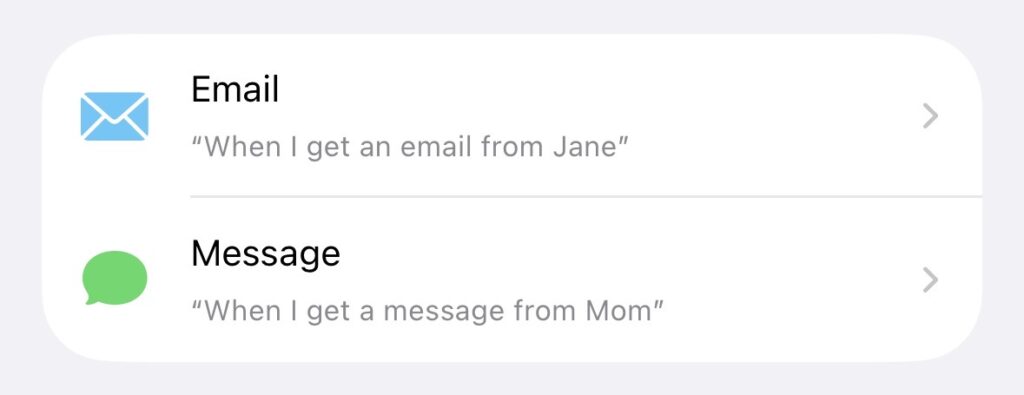
- Create a new personal automation by opening the Shortcuts app and going to the “Automations” tab. Tap the “+” button to add a new automation and select either “Email” or “Message”.
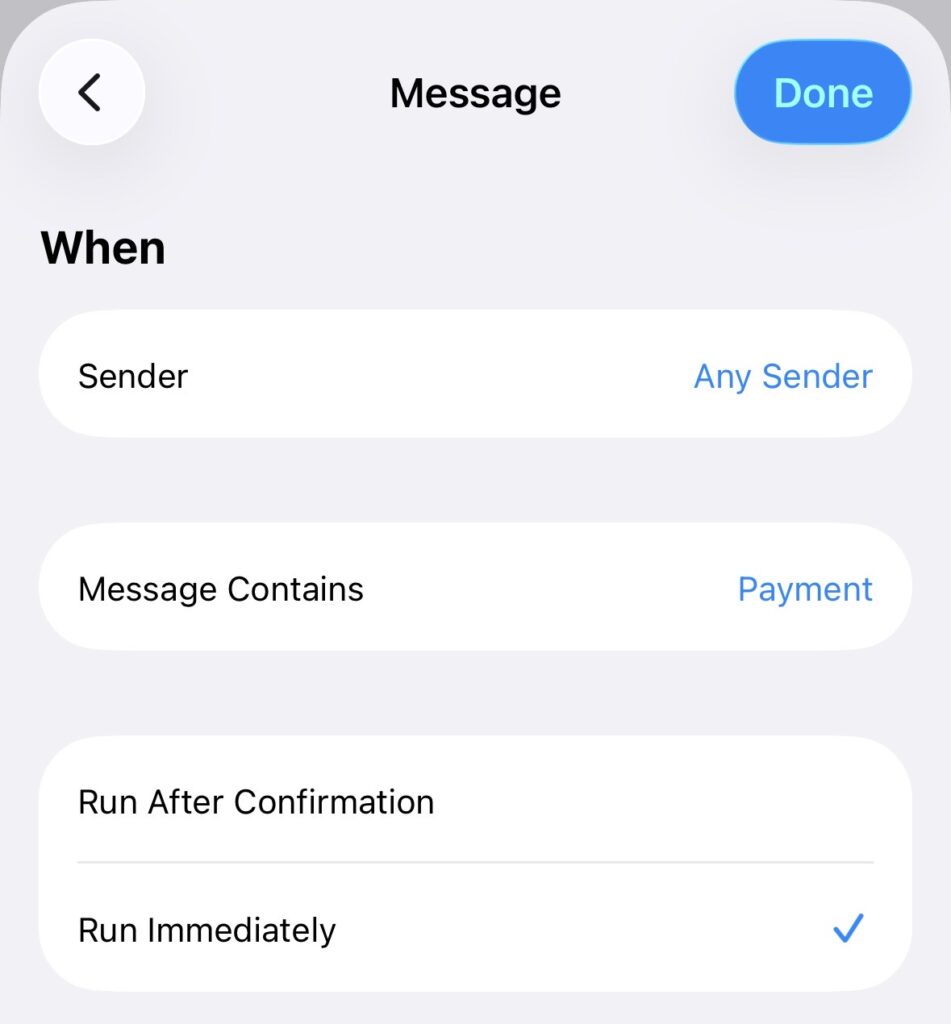
- On the next screen, you can define the content of the email or message that this automation will apply to. You must now configure the options for when the automation runs here. In our example in the screenshot below, we have configured it so that it always runs as soon as a message contains the content “Payment”. However, you will need to adapt this to the format used by your bank or retailers so that it is recognized correctly.
- At the bottom of the screen, select “Run Immediately” to avoid having to manually confirm it. Tap “Next” to continue.
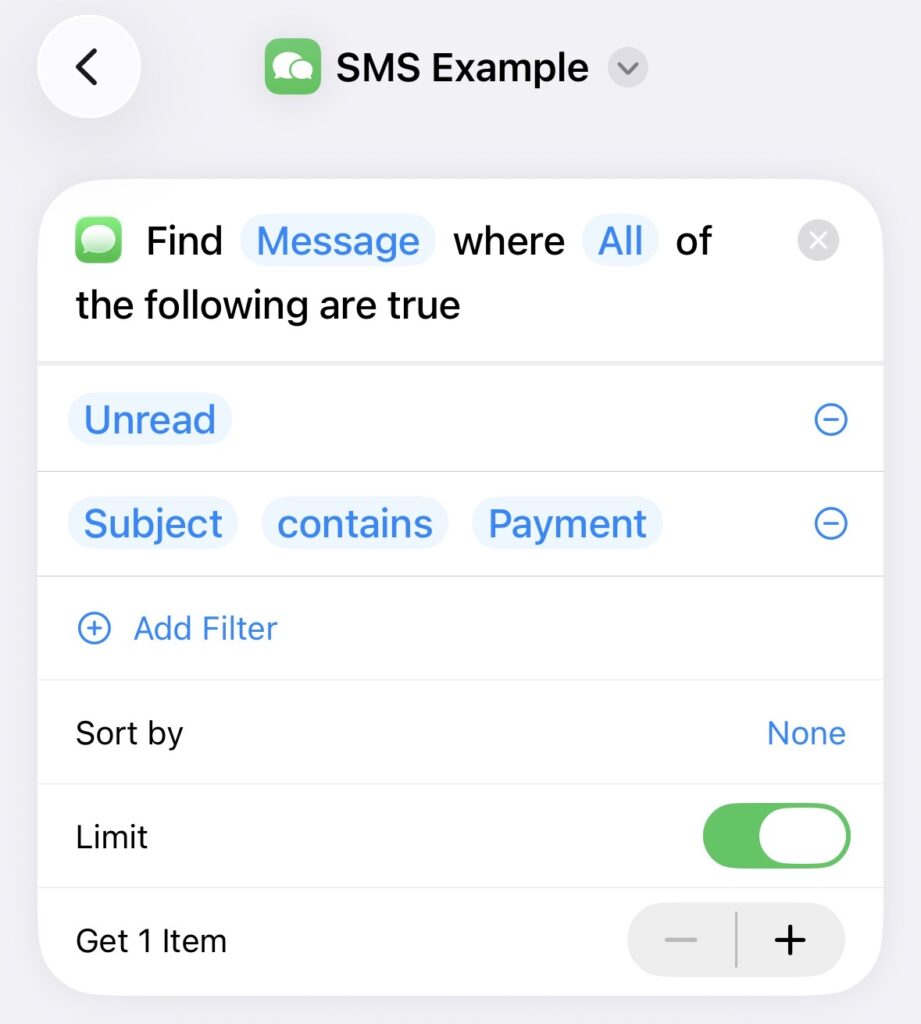
- Automations require a specific shortcut input configuration. Instead of selecting a shortcut directly, choose “New Blank Automation”. Inside this new automation, tap “Add Action”, select the “Mail” or “Messages” app, and click on the “Find Message” shortcut.
- The next step is to configure the “Find Message” shortcut so that the message can be read correctly. As before, we search for the first unread message with the subject “Payment”. However, as mentioned before, you will need to adapt this to the format used by your bank or retailers so that it is recognized correctly.
- Now that we have the message, we need to parse the content so that we get the relevant information. To do this, we use the “Match” shortcut, where we use a regular expression to correctly read out the desired fields.
- As input, we take the “body” of the previously read “message”. To do this, click on the parameter after “in” and then select the message body as shown in the screenshot below.
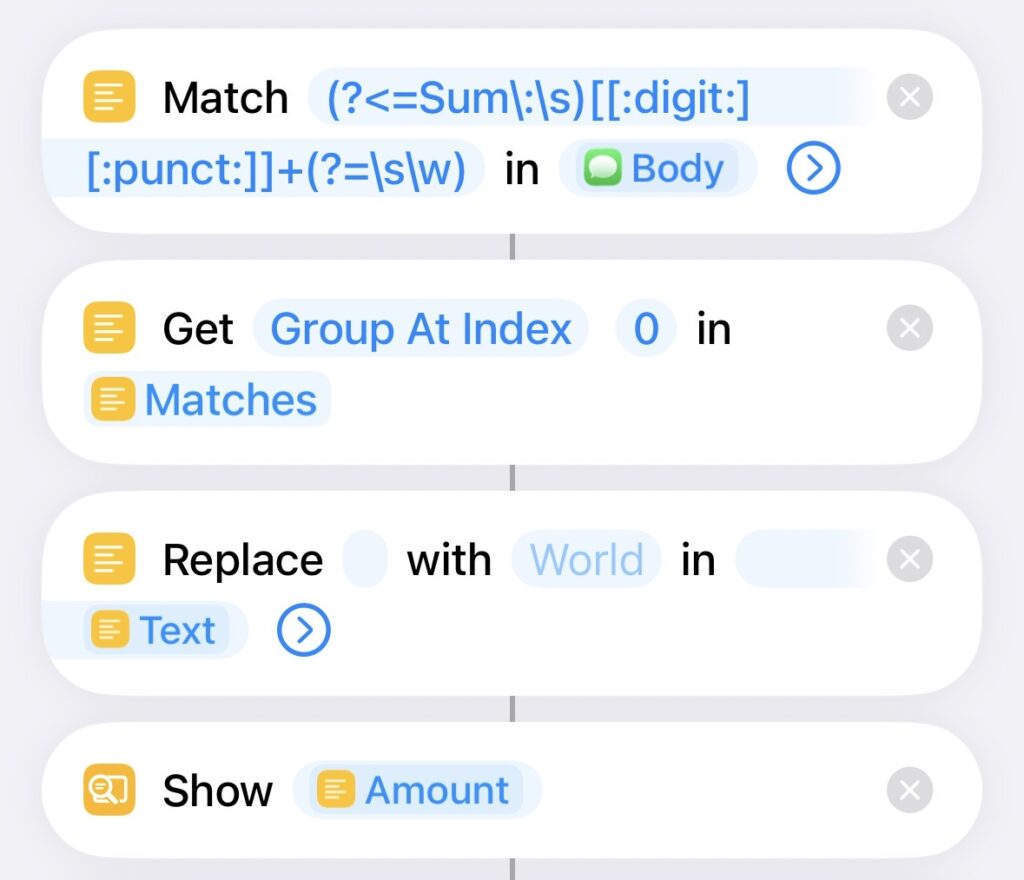
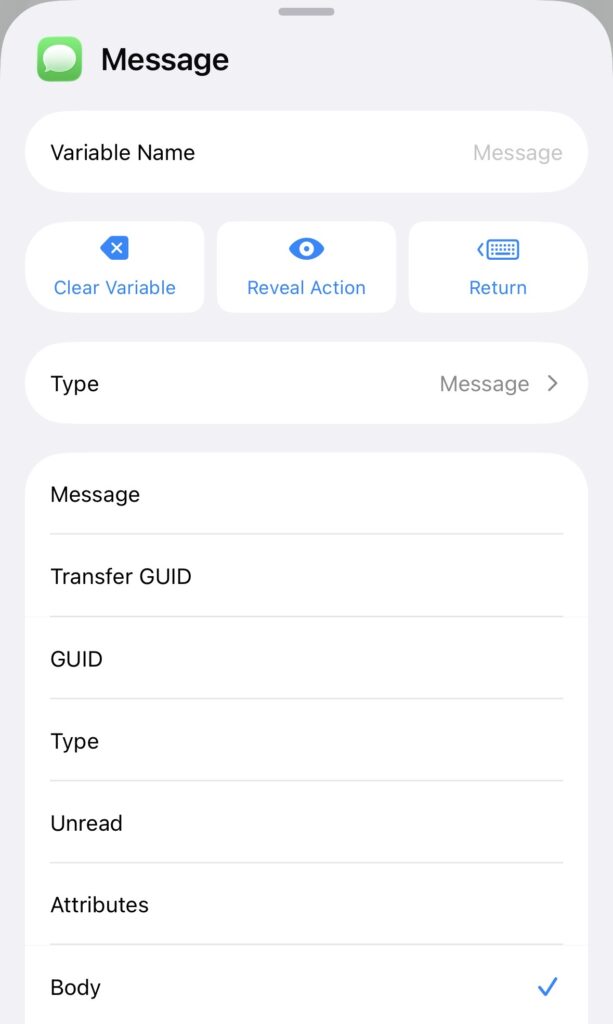
- Depending on what the message from your bank or retailer looks like, the regular expression thing may look different. In our example, we assume that the message simply contains “Sum” followed by the amount (example: “Sum: 1.234,56 EUR”). The result is then stored in a variable called “Amount”.
- For testing purposes, we also display the variable at the end to ensure that our regular expression is functioning correctly. However, you can remove this step again at the end.
- You can now repeat the steps shown above for all relevant fields (depending on how much information you want to extract from the SMS). In our example, we will limit ourselves to the amount to keep it as simple as possible.
- If you have difficulty finding the correct regular expression, you can use Online Tools like Regex101 or AI such as ChatGPT or Gemini to assist you.
- Next, add the “Create Transaction” shortcut from Budget Flow.
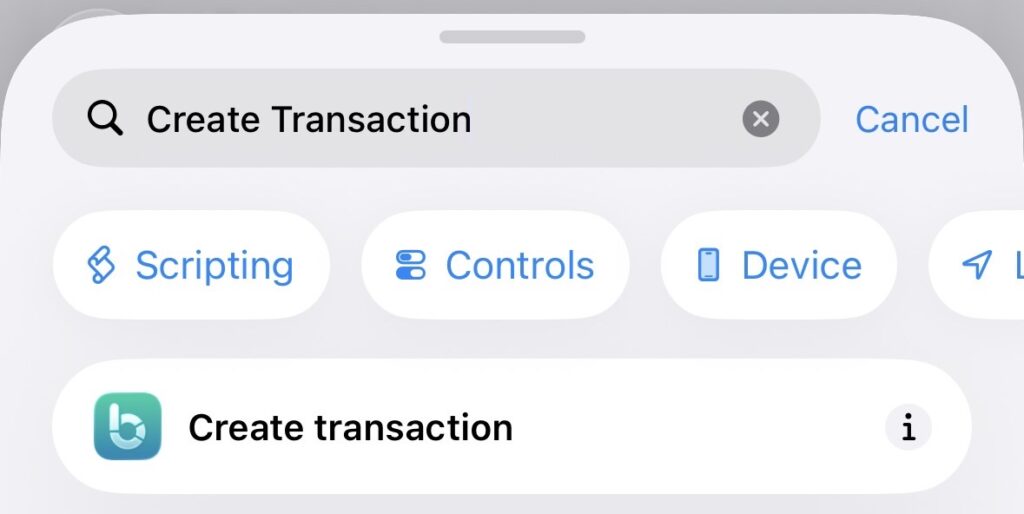
- To ensure that it receives the correct input, expand the shortcut by tapping the button. You’ll need to configure the shortcut according to your preferences, such as specifying the “Budget Book”, “Account” or “Category” to use. Set the “Type” to “Expense” to add the new transactions as expenses by default. The most important step here is to configure the “Amount” field. Select the “Amount” field, tap “Select Variable”, and choose the previously specified “Amount” variable.
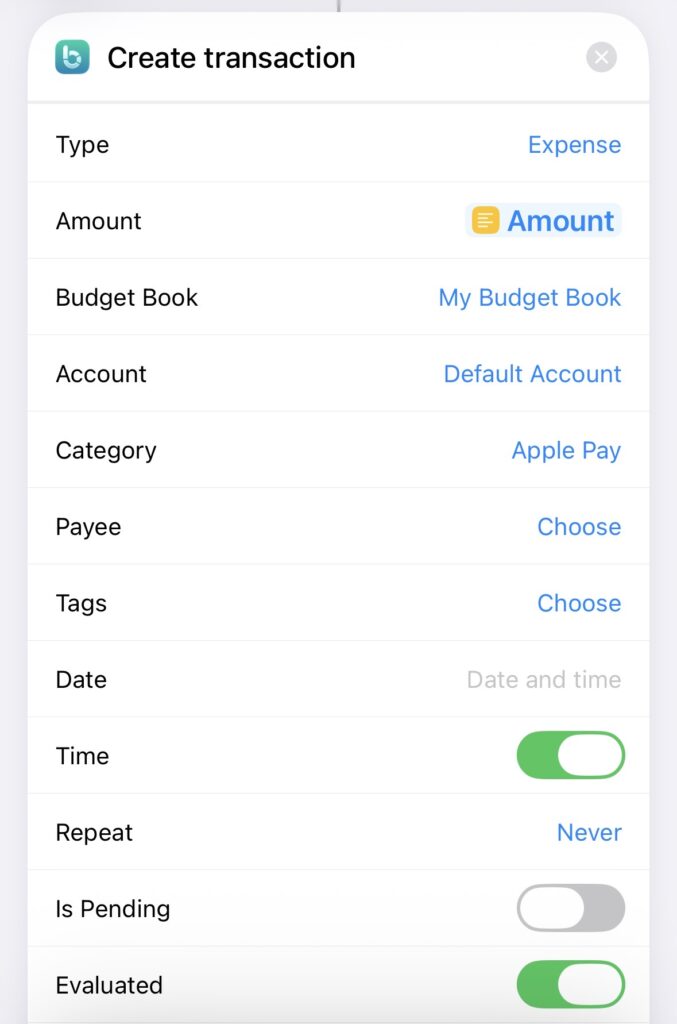
- In our example, we simply add the transaction with the previously parsed amount to an “Apple Pay” category within our budget book called “My Budget Book” and our “Default Account” in order to categorize it later. However, you can configure the shortcut as you wish to suit your needs.
- Your automation is now properly configured. Simply tap “Done”, and you’re all set.
- Now, every time you receive an E-Mail or SMS (with the content you previously defined), the transaction is automatically added to Budget Flow! 🎉